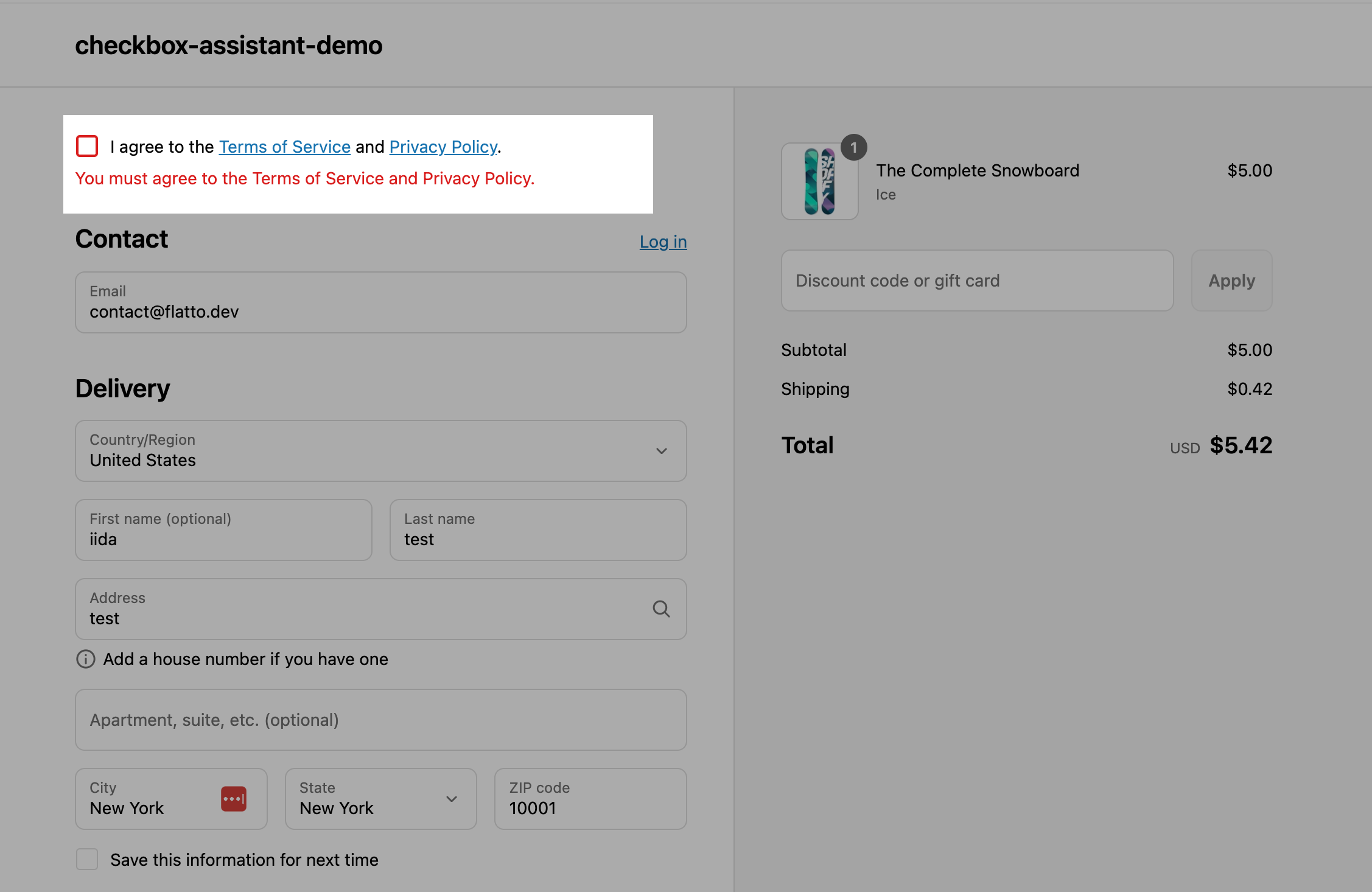
Add a Checkbox to the Checkout Page (Enterprise Plan Only)
How to add an agreement checkbox to the Shopify checkout page: upgrade to the Enterprise plan, create a checkbox, copy its ID, and add the app block in the checkout editor. Shopify Plus only.
To add a checkbox to the checkout page, create the checkbox in the app, copy its ID, and add it as an app block in the Shopify checkout editor. This feature is for Shopify Plus stores on the Enterprise plan of our app.
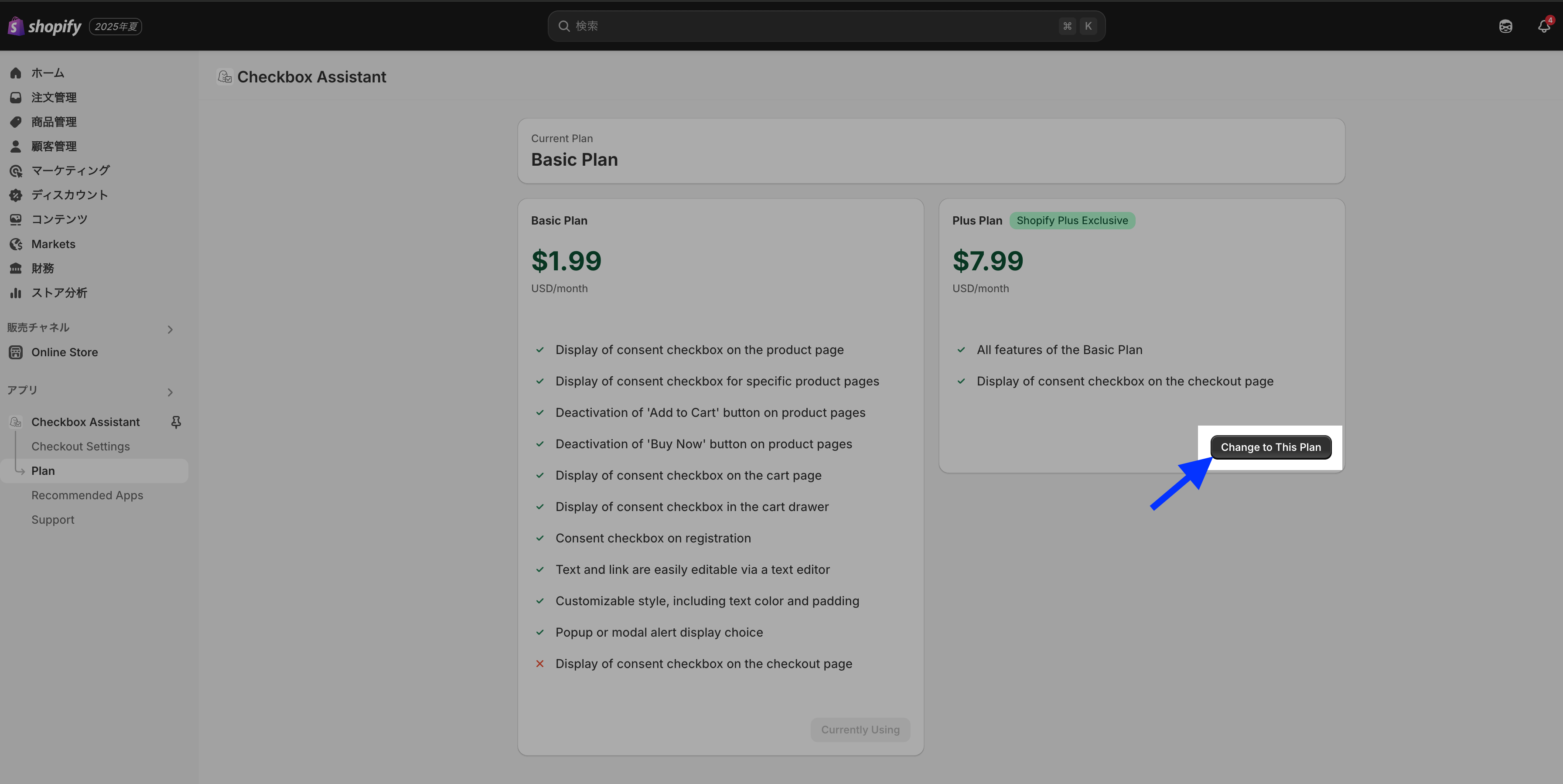
1. Upgrade to the Enterprise plan
💡 The Enterprise plan is only available for Shopify Plus stores. This is because it uses Checkout UI Extensions, which are only supported on Shopify Plus.
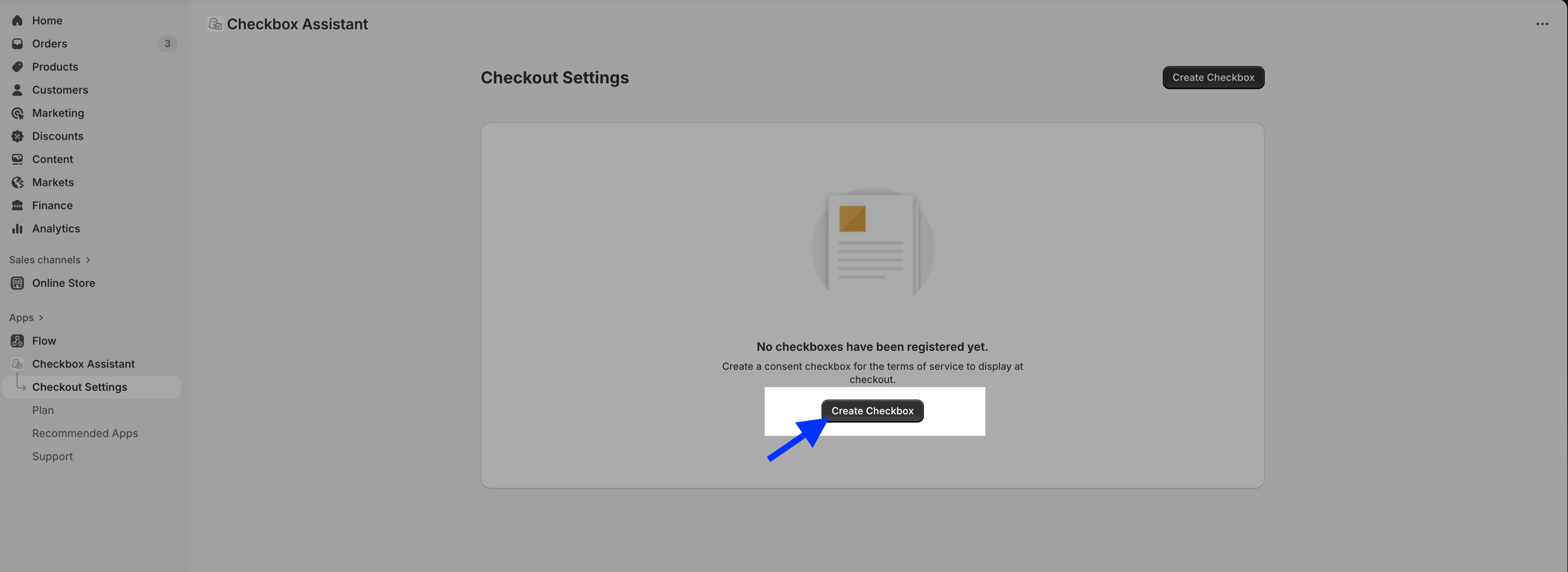
2. Create a checkbox to show on the checkout page
3. Set the checkbox text and display conditions, then click Save
Display text
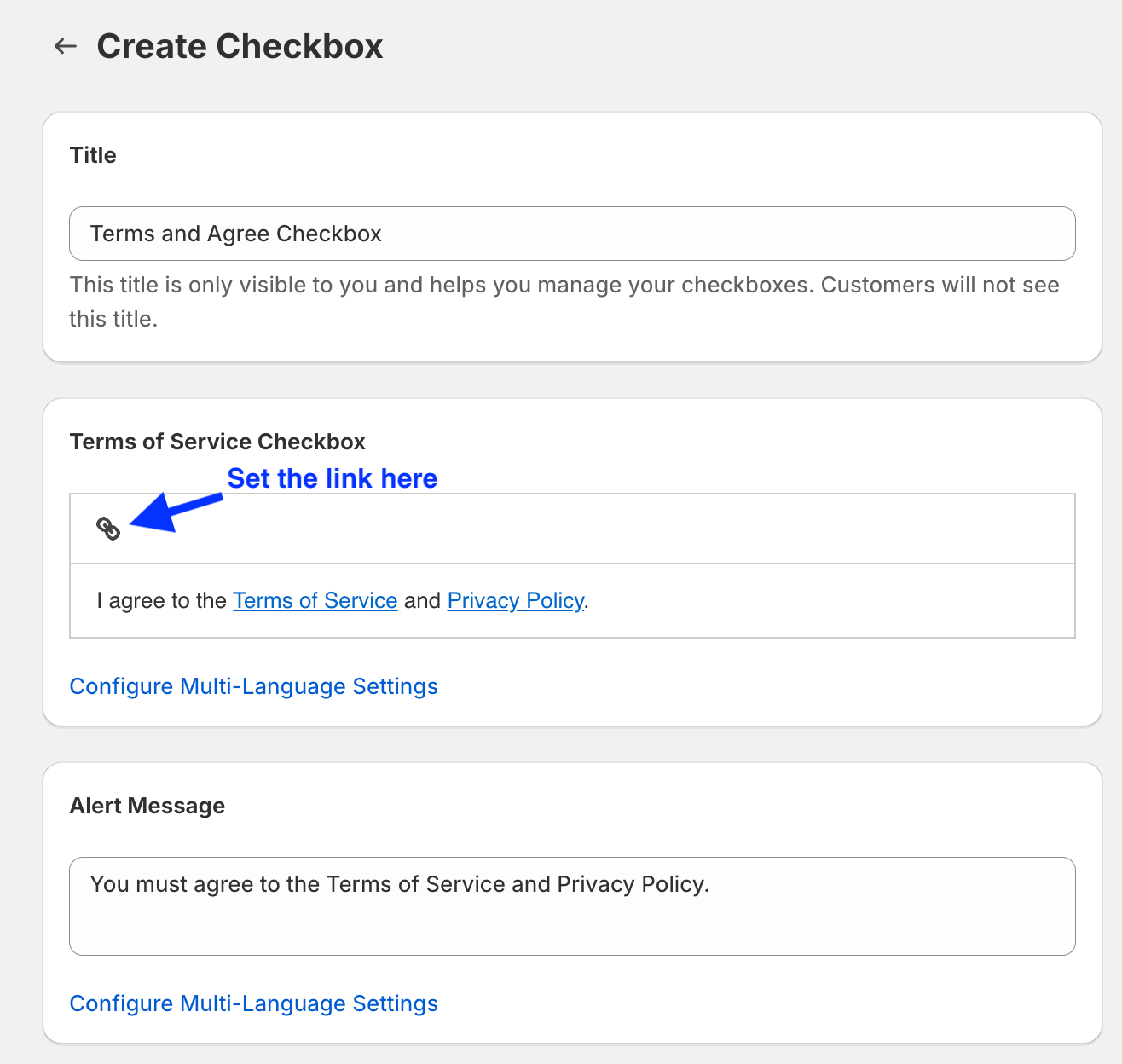
💡 Click “Configure Multi-Language Settings” to support multiple languages.
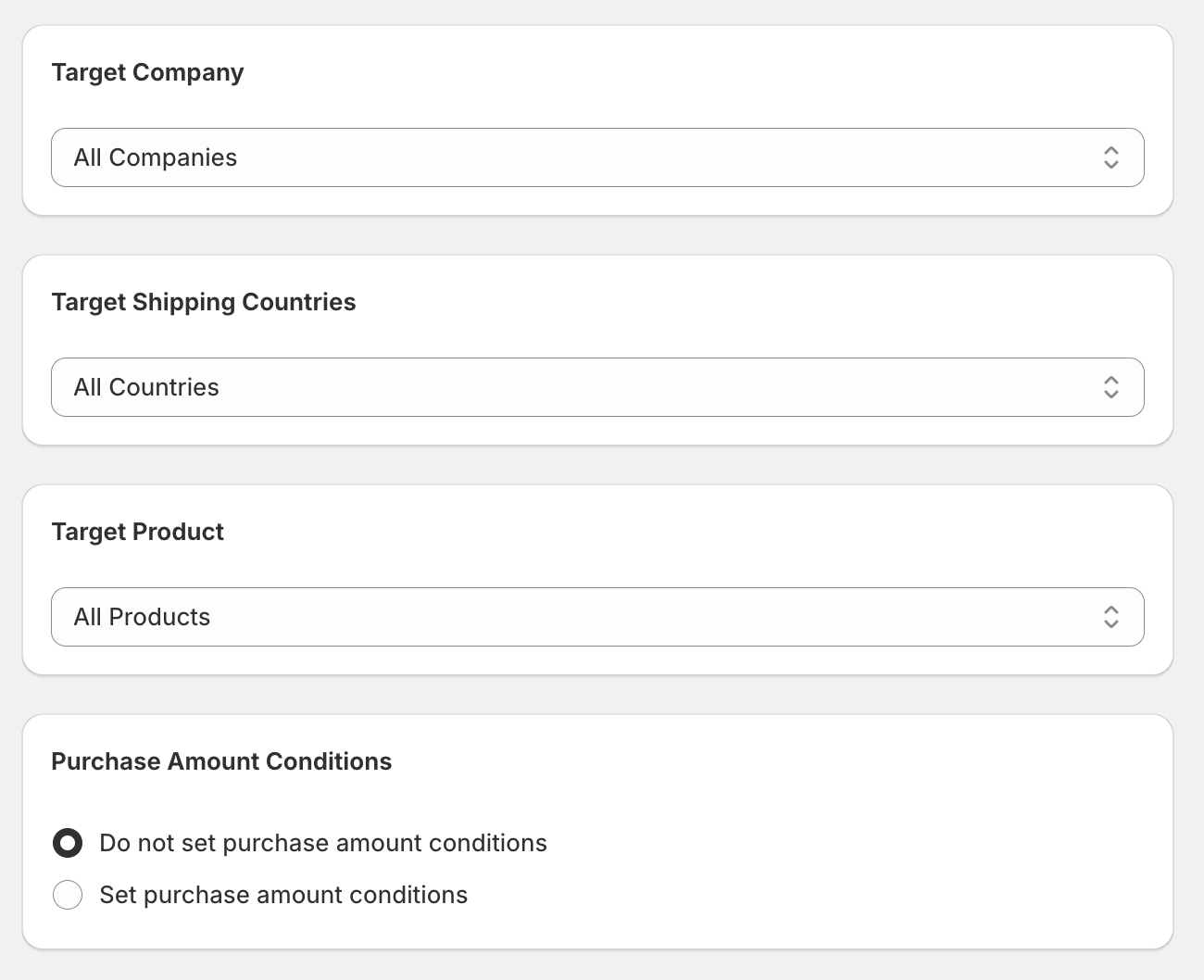
Display conditions
- You can choose when the checkbox should appear.
- By default, it appears in all cases.
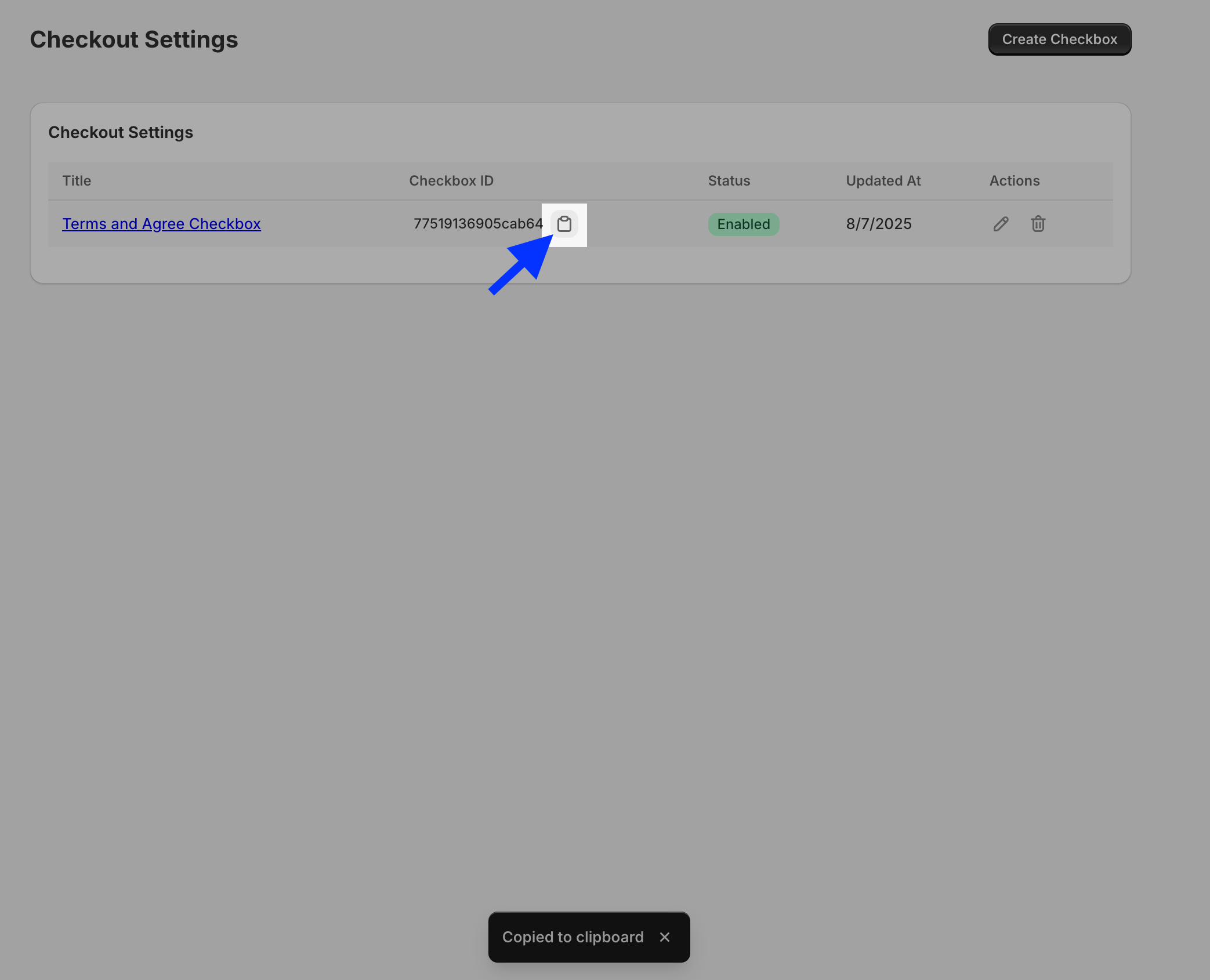
4. Copy the Checkbox ID
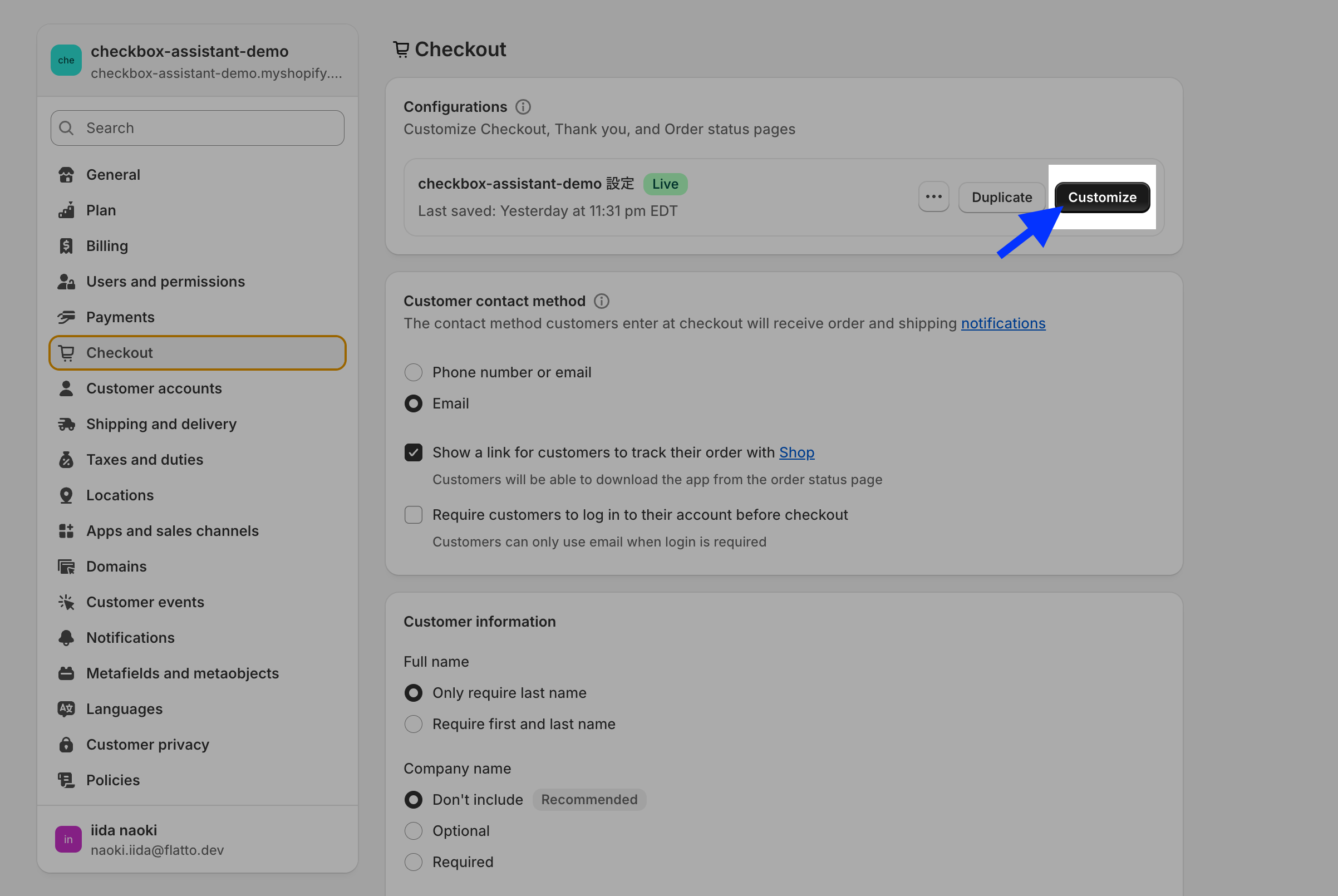
5. Open the Checkout Settings screen
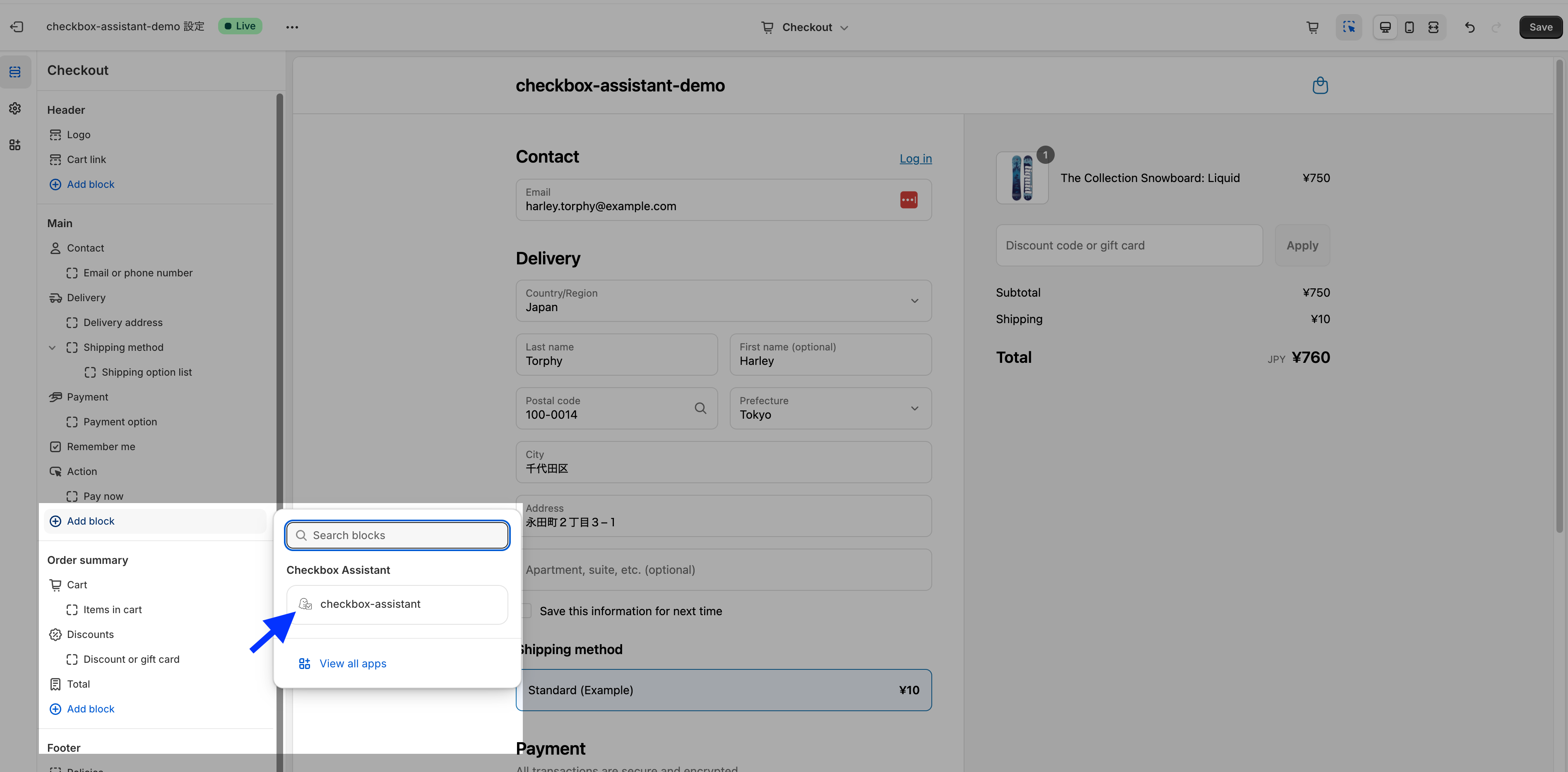
6. Select the app block
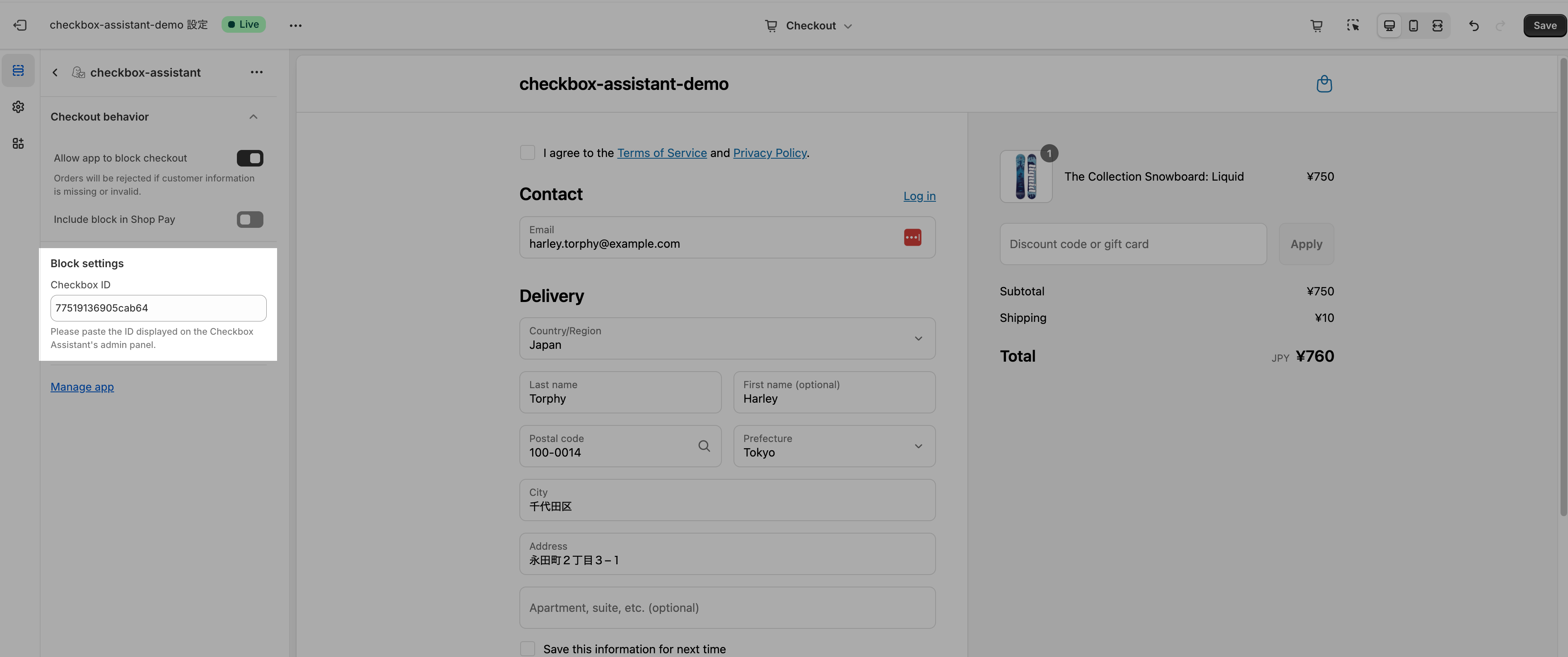
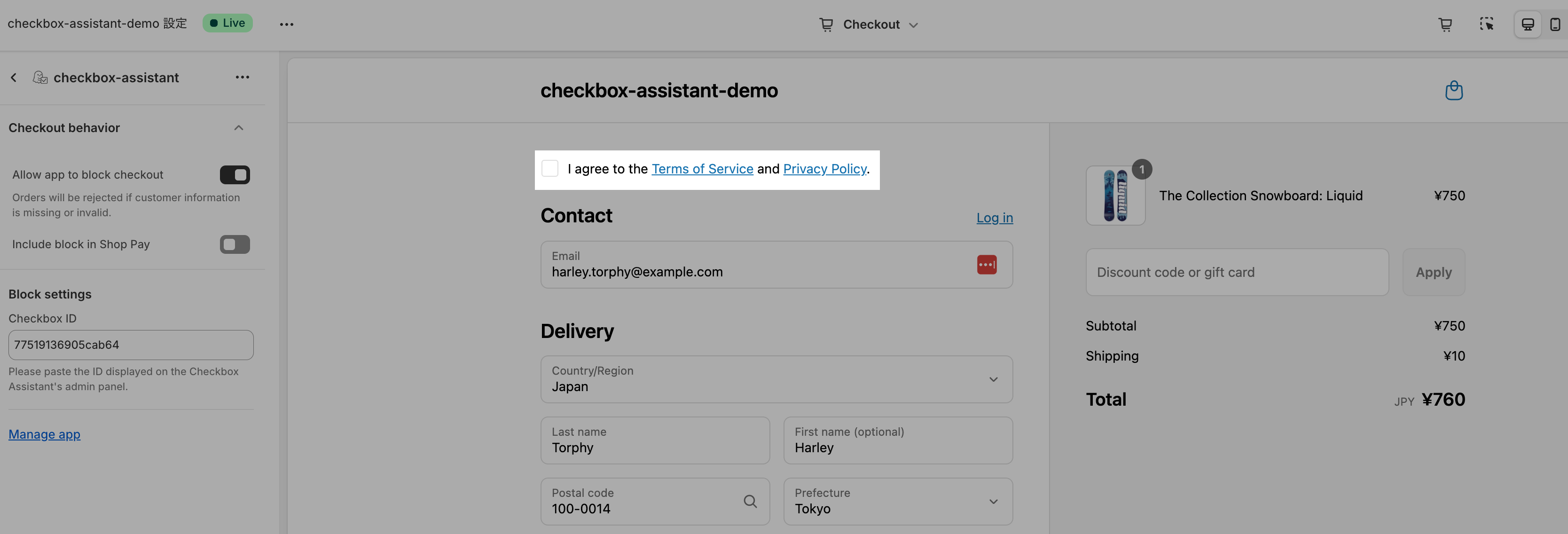
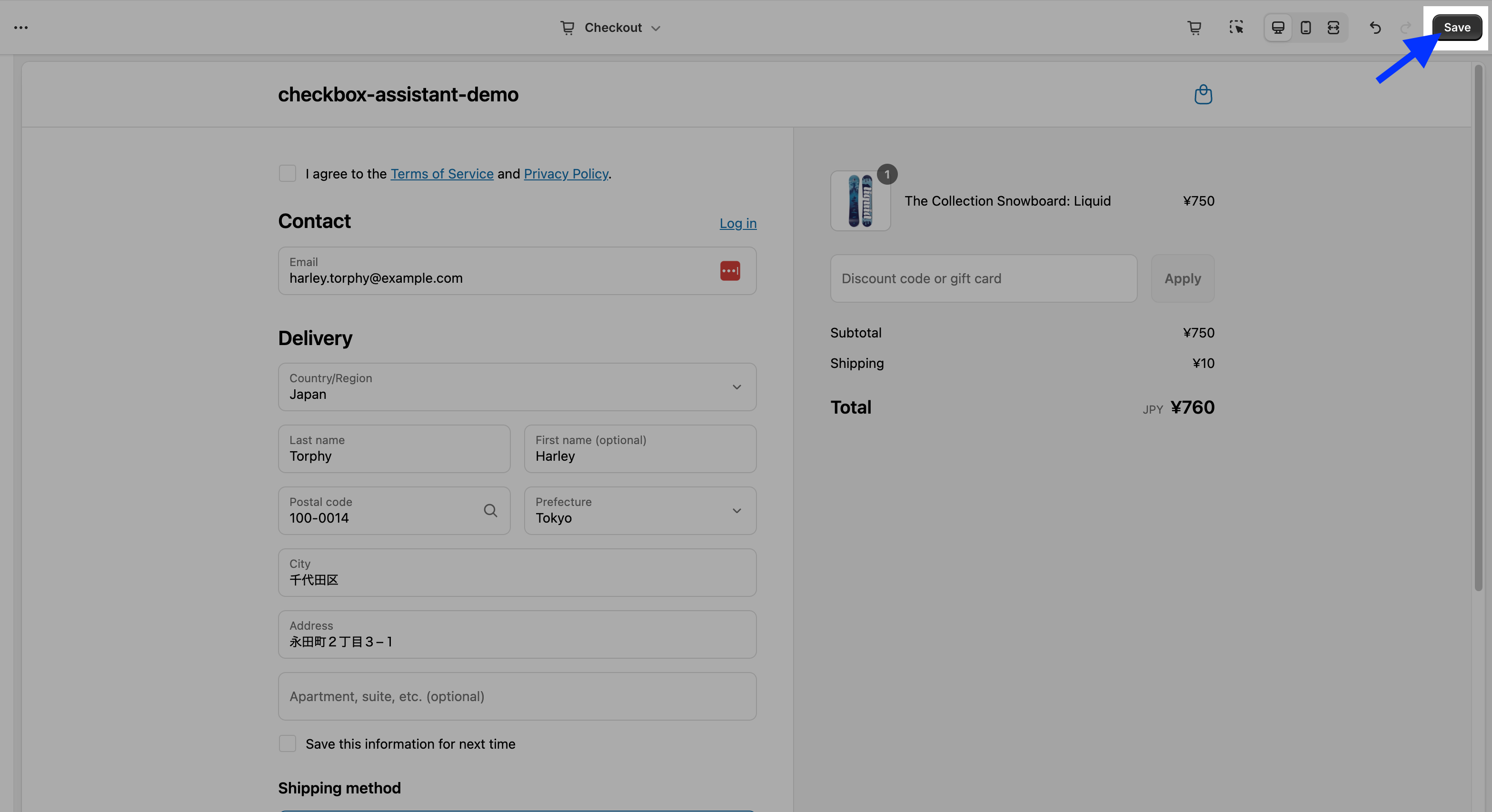
7. Paste the Checkbox ID, check the display, and click Save
💡 Note: The alert message cannot be previewed in the settings screen. Please test it on your store’s actual checkout page.