Tutorial
Basic setup tutorial for Kakureru Pay. Learn how to hide, reorder, and rename payment methods for customers with a specific customer tag (e.g. "test"), step by step.
This tutorial walks through hiding, reordering, and renaming payment methods for customers with a specific customer tag (e.g. “test”). Before configuring anything, first align the app’s payment method list with what your checkout actually shows, then set up the hide, sort, and rename operations. Once you understand these basics, adjust the settings to fit your own store’s needs.
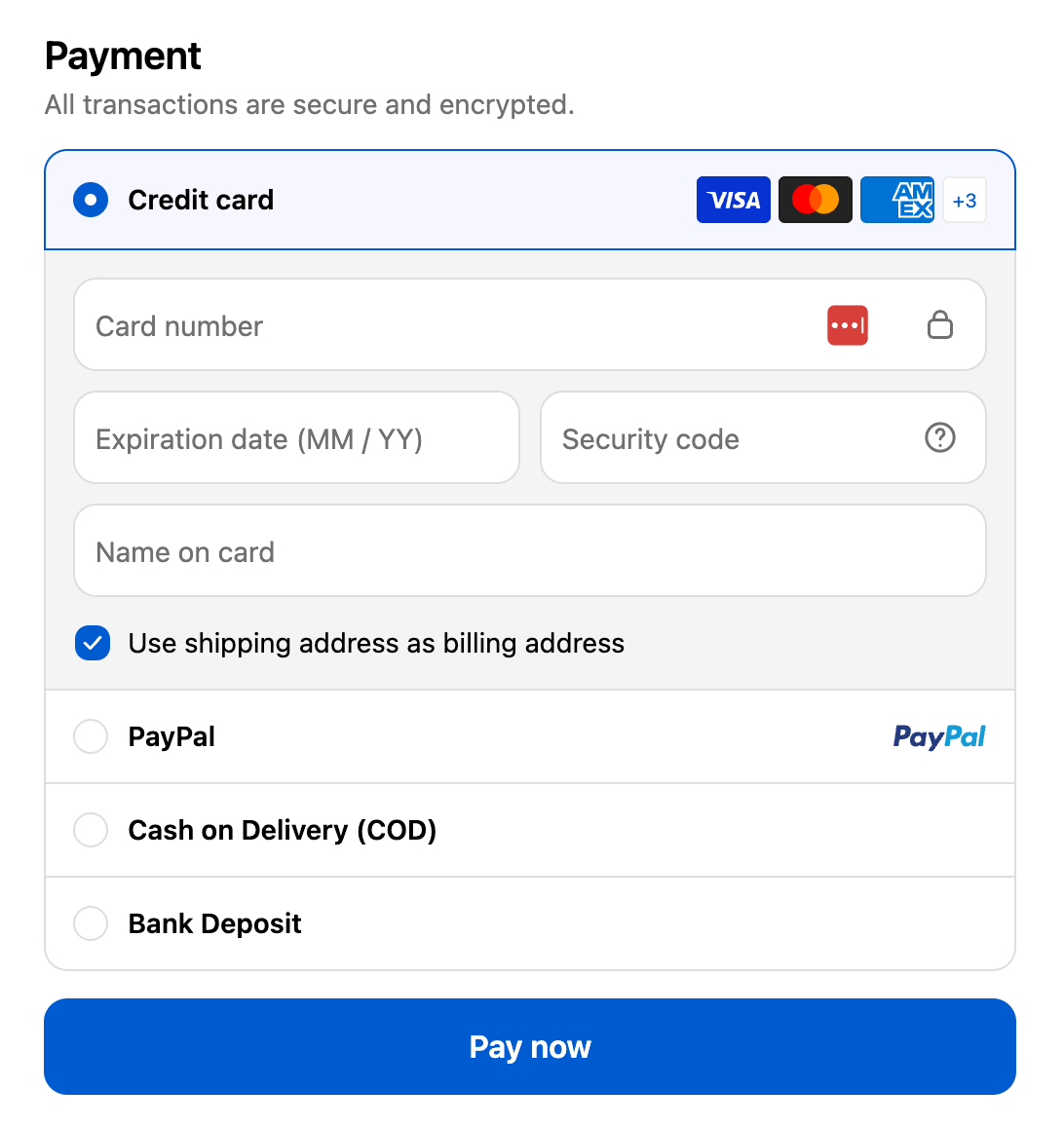
1. Check the payment methods currently shown
2. Add the payment methods you use to the list
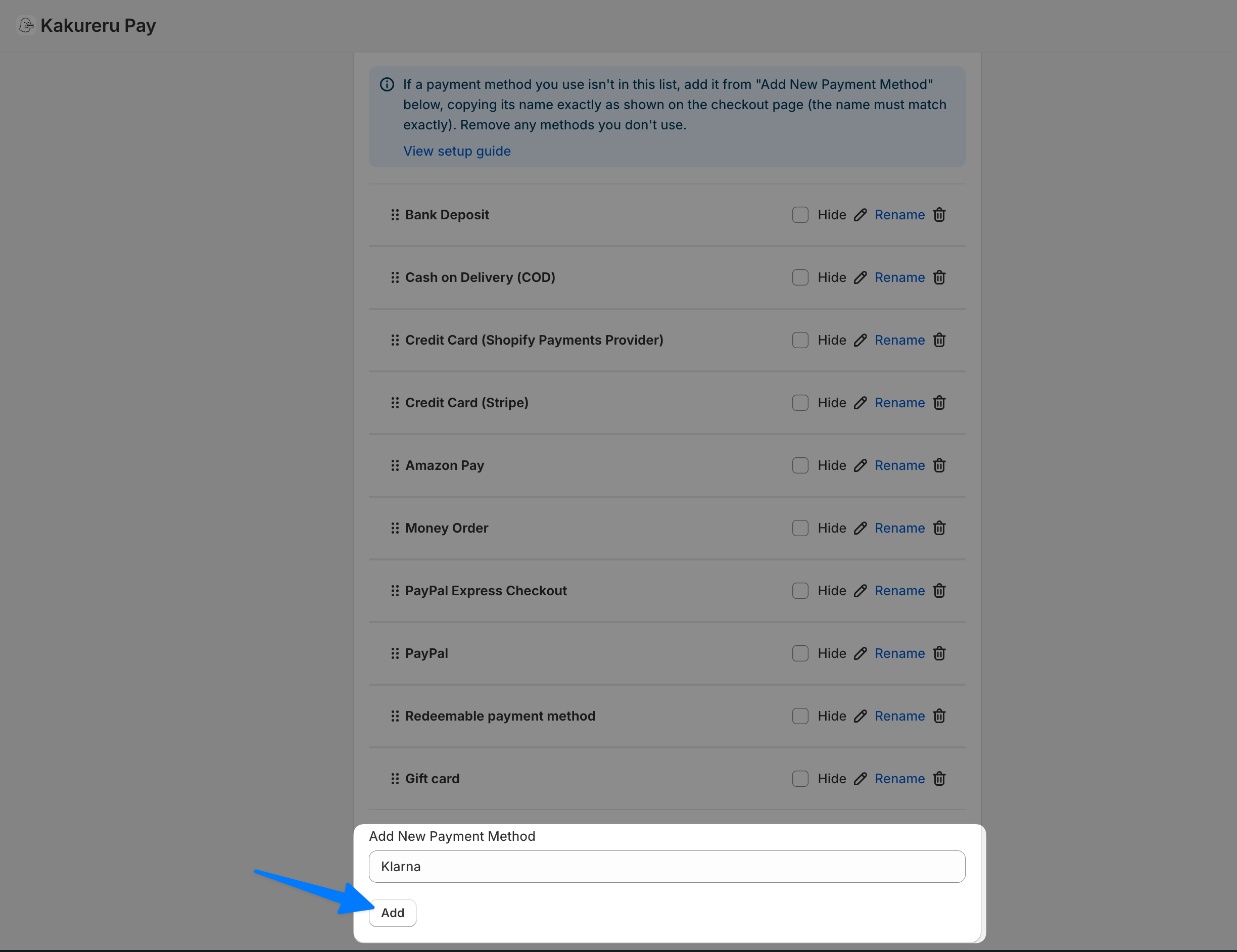
Open the app’s settings screen to see the payment method list. If a payment method you confirmed in step 1 is missing from this list, copy its name and add it from “Add New Payment Method”.
💡 Copy and paste the payment method name exactly as it appears in your checkout. If even one character differs, it is treated as a different payment method and your settings will not apply. “Klarna” here is just an example — add the payment methods that actually appear in your own checkout.
3. Remove the payment methods you don’t use
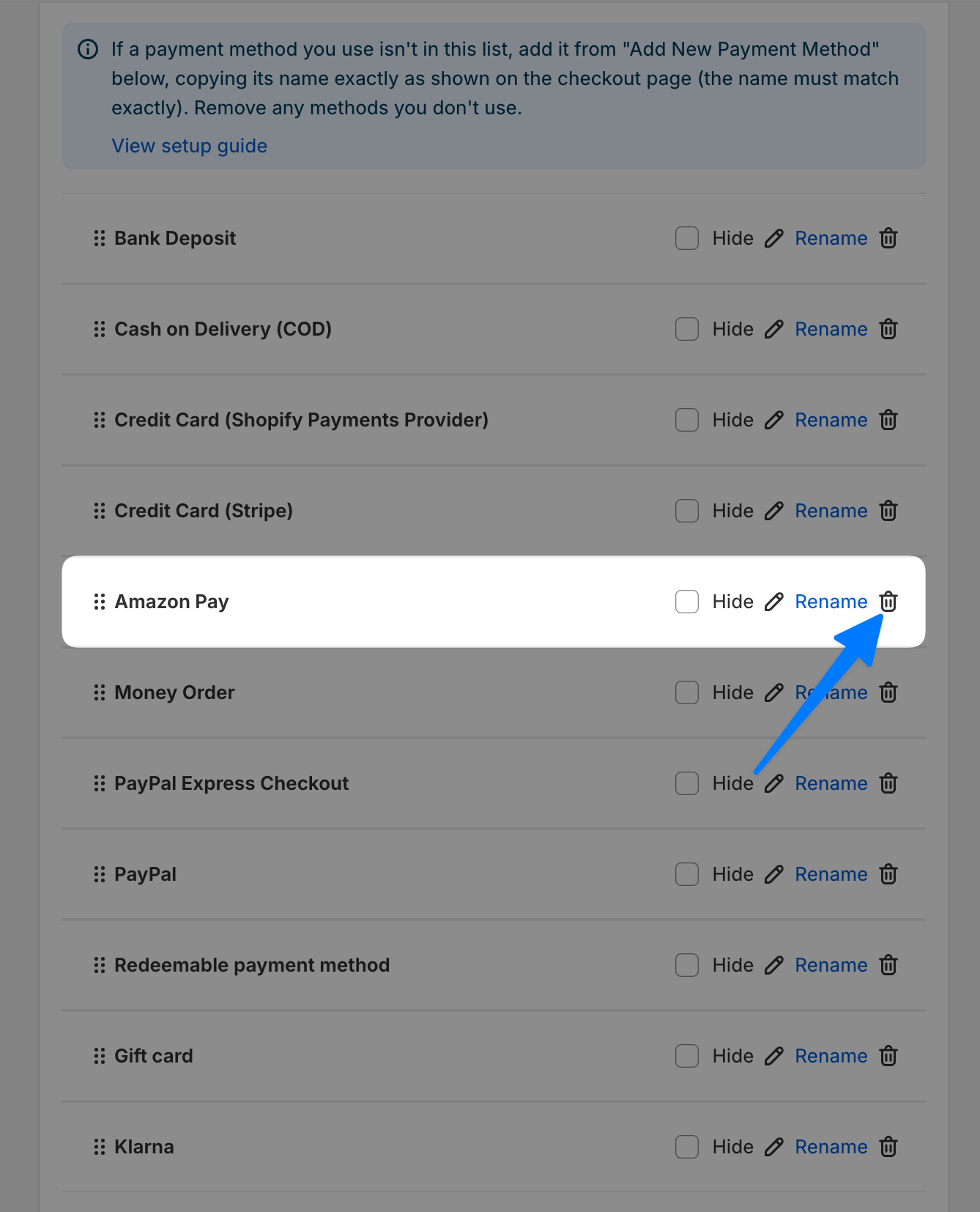
To make the list easier to work with, delete all unused payment methods. Use the trash icon on the right of each row.
💡 Deleting a payment method from this list does not affect what your customers see at checkout. It only removes it from the app’s management list, so it is safe to delete.
4. Configure hiding, reordering, and renaming
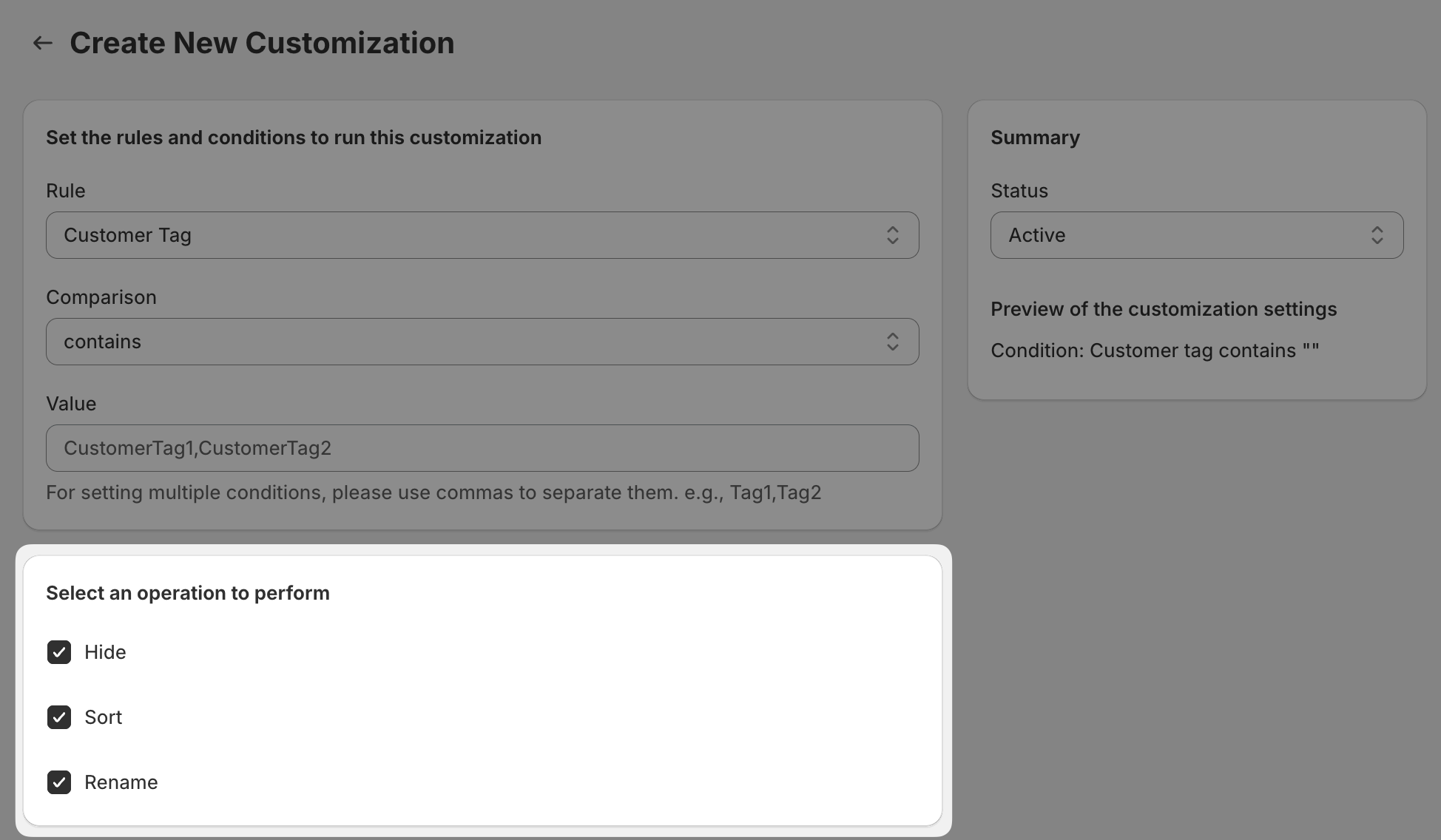
Create a customization with the condition “customer tag contains test”, and select the operations to run. This tutorial checks all operations so we can see each one in action.
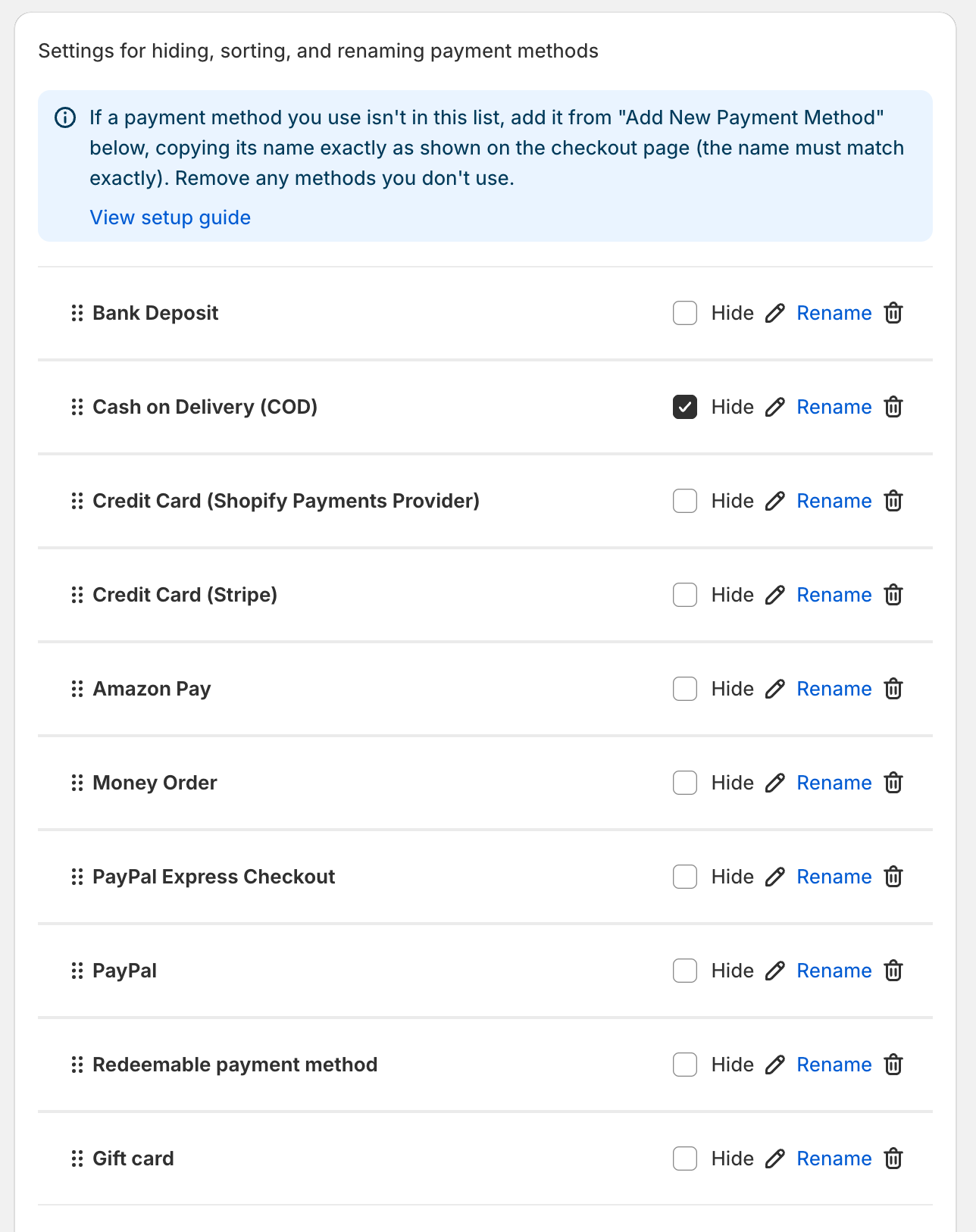
Hide
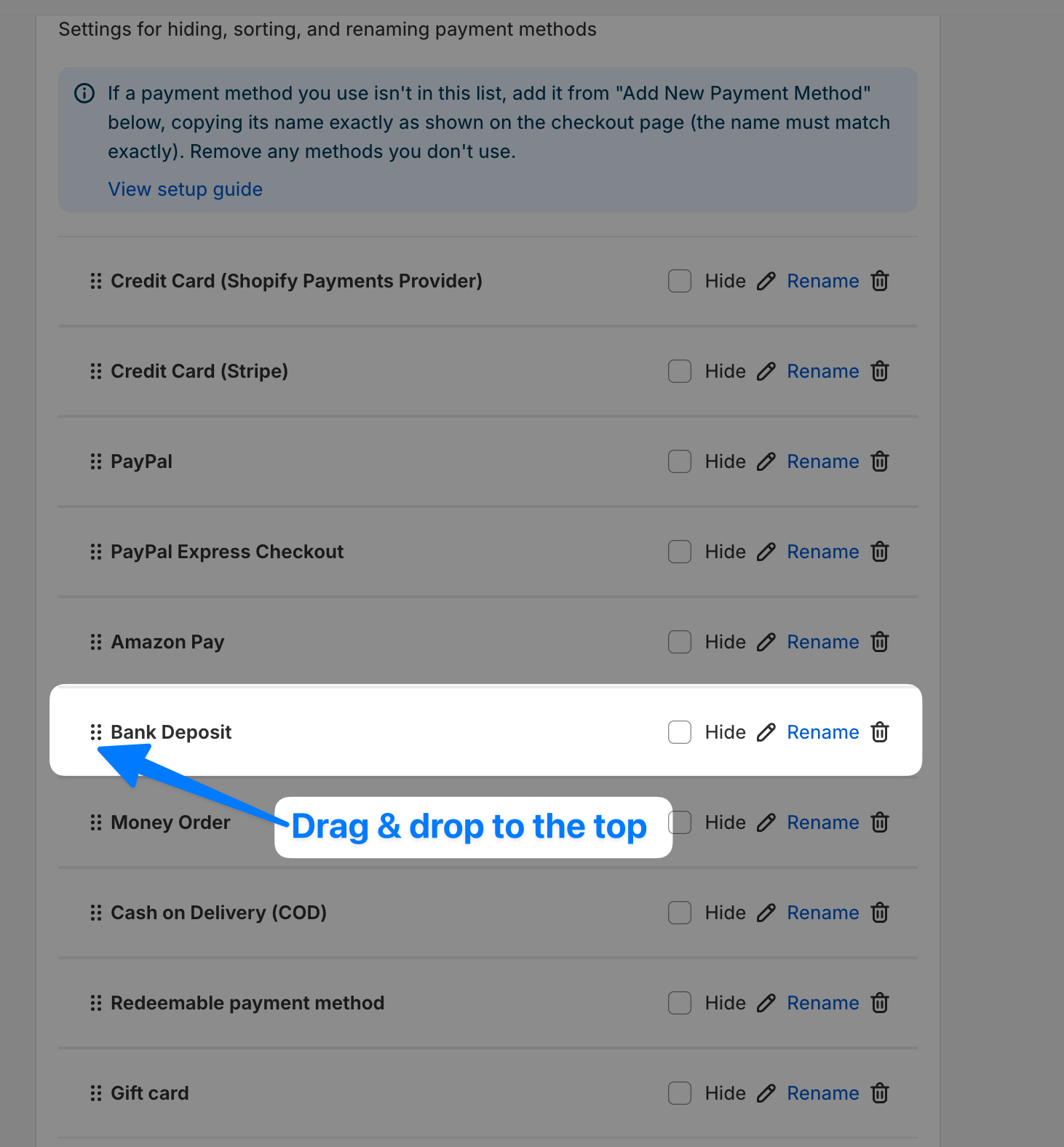
Sort
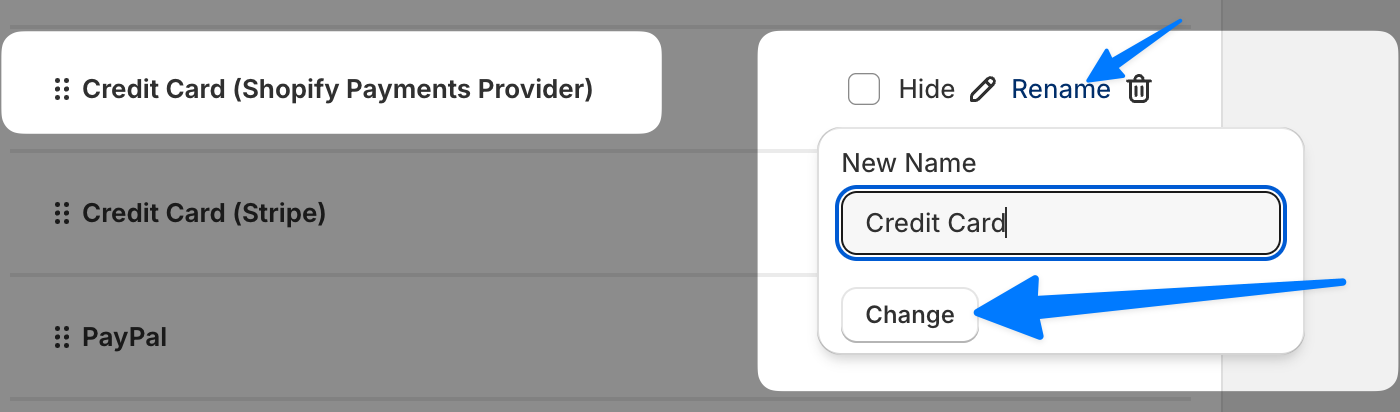
Rename
Save when you have finished configuring — use the Save button at the bottom of the form, or the save bar that appears at the top of the admin.
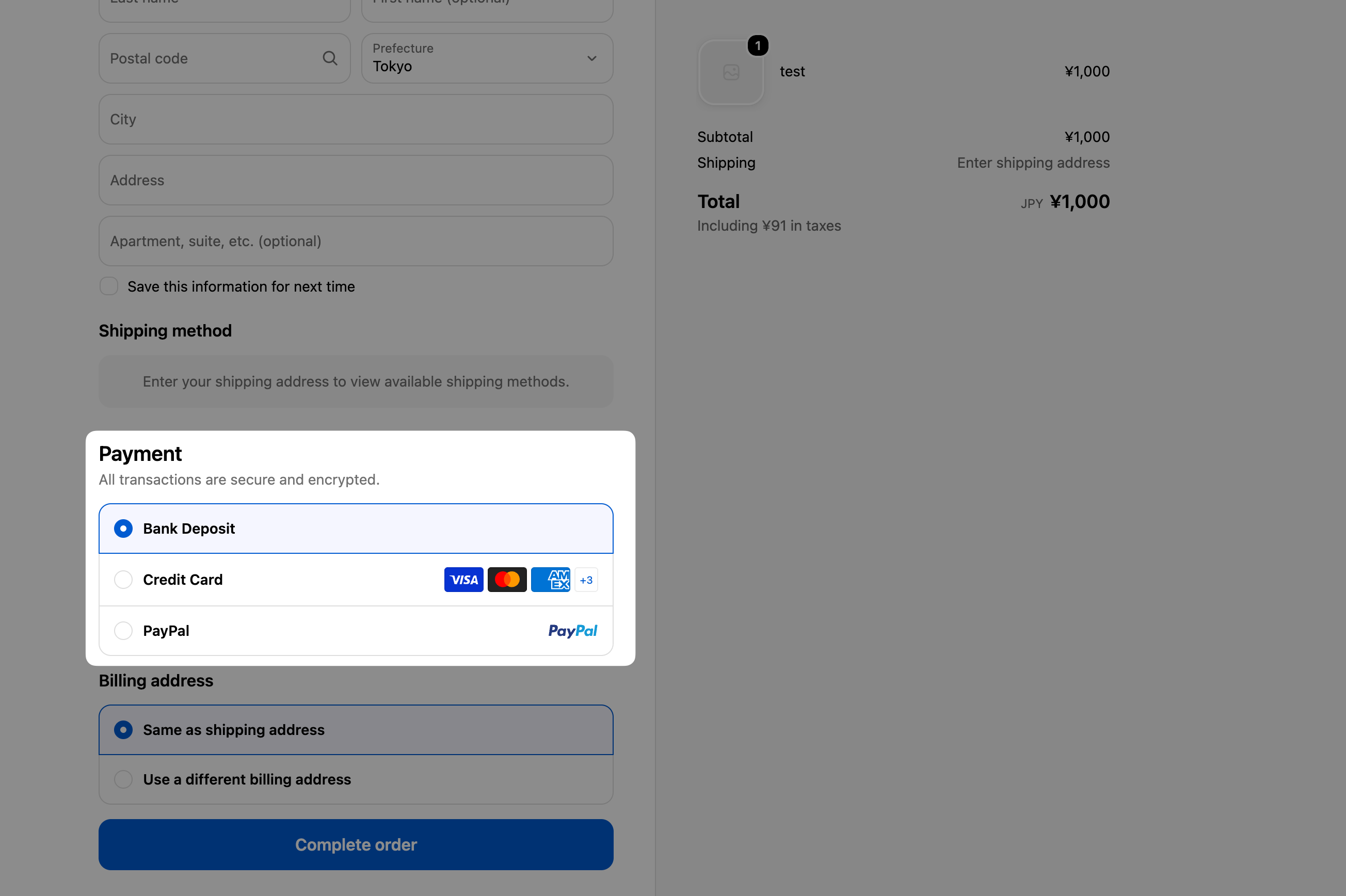
5. Verify the result
💡 Confirm that Cash on Delivery is hidden, Bank Deposit appears at the top, and the credit card method now shows its new name.
6. If it doesn’t work as expected
See What should I do when a payment method I use isn’t in the list, or my settings don’t take effect?.
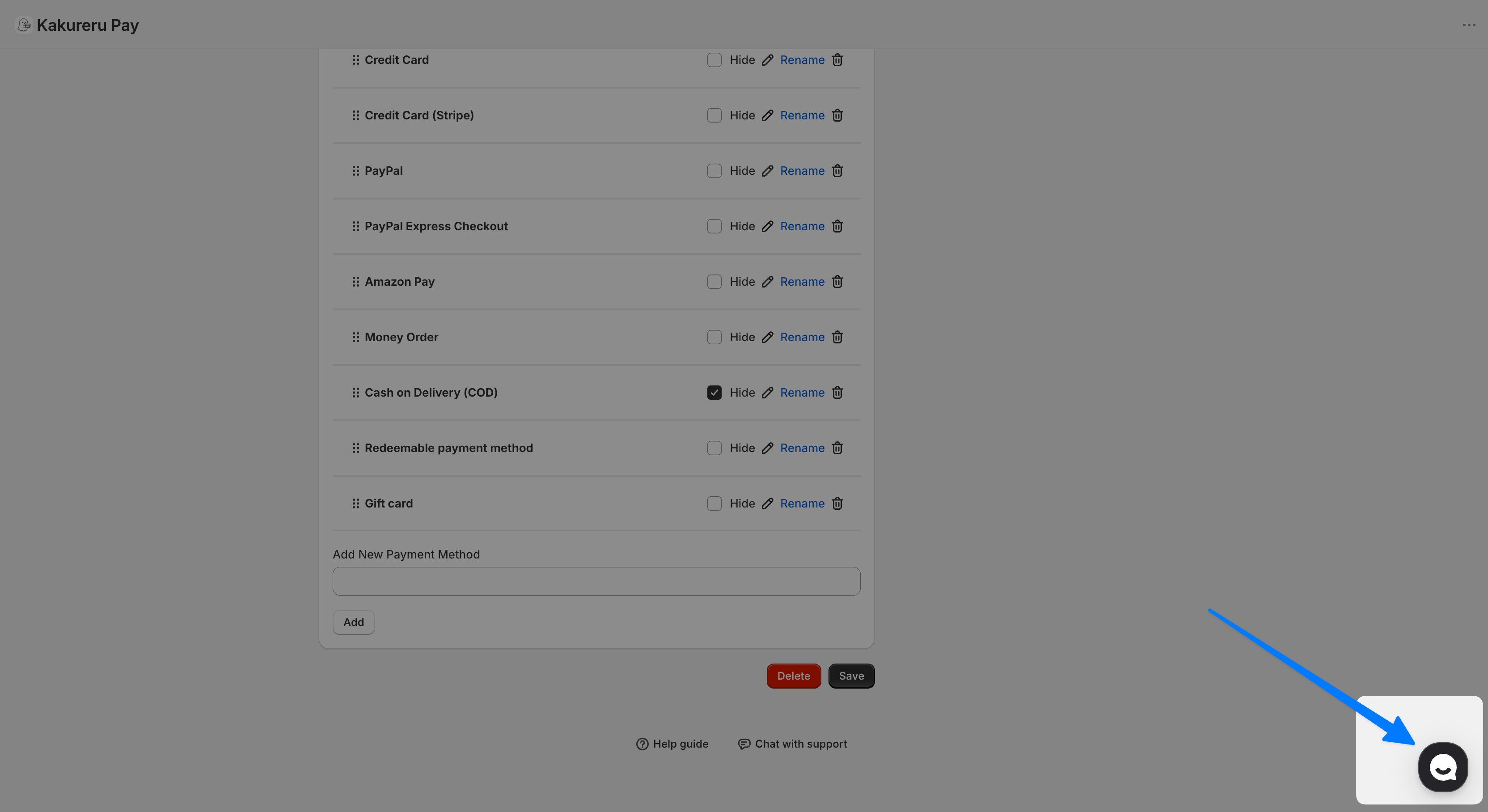
If that article doesn’t solve the problem, feel free to contact us from the chat menu at the bottom right of the app screen.