Where Is the Consent Timestamp Saved and Displayed?
Checkbox Assistant saves the consent date and time in the "Additional details" section of each order. Learn where it appears and why express checkout orders have no timestamp.
The consent date and time is saved in the “Additional details” section on the right side of the order details page in your Shopify admin. It is not saved anywhere else.
💡 To use this feature, enable “Save consent agreement date and time” in the common settings of your checkbox configuration (available on the Starter plan and above).
Where it appears and its format
Open any order from the Orders page. Below “Notes” on the right side, the “Additional details” section shows the consent in the following format:
2026/08/04 10:29:49 (Asia/Tokyo) - I agree to the Terms of Service and Privacy Policy.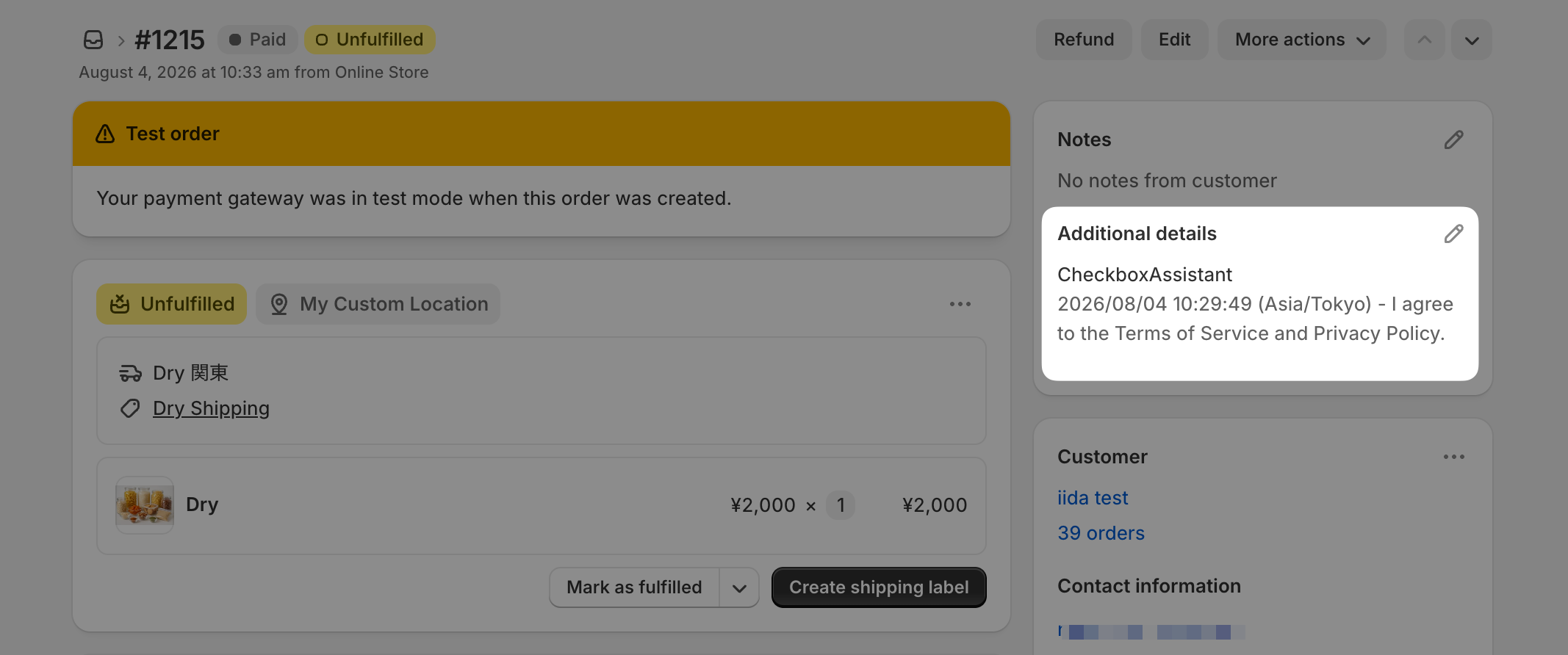
- The date and time is recorded in the customer’s local time zone (shown in parentheses)
- The checkbox text the customer agreed to follows the timestamp
Orders that do not have a consent timestamp
Whether the timestamp is saved depends on which button the customer used to enter the checkout. The payment method chosen inside the checkout does not matter.
- Saved: Orders where the customer agreed to the checkbox on the product page, cart page, or cart drawer, and proceeded through the regular “Checkout” button. The timestamp is saved even when they pay with Shop Pay, PayPal, or Google Pay inside the checkout.
- Not saved: Orders placed through an express checkout button shown on the product page or cart page, such as “Buy it now” or “Buy with Shop Pay”. These buttons skip the cart, so due to Shopify’s specifications the timestamp cannot be carried to the order (the checkbox agreement itself is still enforced).
If only some of your orders are missing timestamps, the customer most likely used an express checkout button. Check how the order was placed in the order details.
How to record a timestamp on every order
Disable express checkout, such as the “Buy it now” button and Shop Pay, so that all purchases go through the cart. See How to Save the Consent Timestamp on Every Order for the setup.